Modern theming is one of the customization features that gives your Model-Driven Power Apps a bit more refreshed look aligned with Fluent 2. There are scenarios where you operate multiple apps in one environment, where each deserves its own custom theme and/or branding specific to a single app. Until recently, I didn’t know it was possible to scope themes to a single app and to be honest, at least for me, the docs and community articles do not make it super clear how to apply it.
There are plenty of articles, blog posts and even a couple of community tools (e.g. _n.ModernThemeBuilder in XrmToolBox) that cover how to create your own theme, so I won’t go into detail here. If you never worked with custom theming, I recommend starting with the official docs and then some community posts to cover the practical side.
Components
In terms of solution components in this context, we usually deal with:
- XML web resource with our custom theme (optionally with only app header colors)
- Optionally a web resource with the logo (can be svg, jpg, png)
- At least one app-module (model-driven app) to apply the theme to
- Settings definitions (provided by Microsoft) with your own values (app or environment values). In particular these two definitions: Custom theme definition and Override app header color
Solution explorer method
Let’s now assume that you want to apply a theme scoped to your single app that doesn’t follow the default (environment) theming settings.
You normally follow the usual steps - create your theme definition that you upload as an XML web resource, optionally along with the logo to display in the app header.
Then in one solution, put your model-driven app along with a particular Setting definition (Add existing -> More -> Setting). “Override app header color” does exactly what the name suggests, only modifies the app header coloring. If we want additional customization, such as a custom logo in the app header or default Fluent colors, then instead select “Custom theme definition”. If you use values for both, the “Custom theme definition” supersedes the “Override app header color” setting.
The wizard appears after you confirm the selection and asks you if you want to include the setting definition and setting environment value. You can uncheck both, as the setting definition already exists in every environment we would be deploying to, and we don’t care about the environment value since we are applying this per-app.

If you have both the model-driven app and the setting in one solution, when you edit the setting, you should see at the bottom an option to set the value specifically for your app. This option is only visible if you have both the setting and the app in the same solution. Put there the unique name of the XML web resource with your theme.
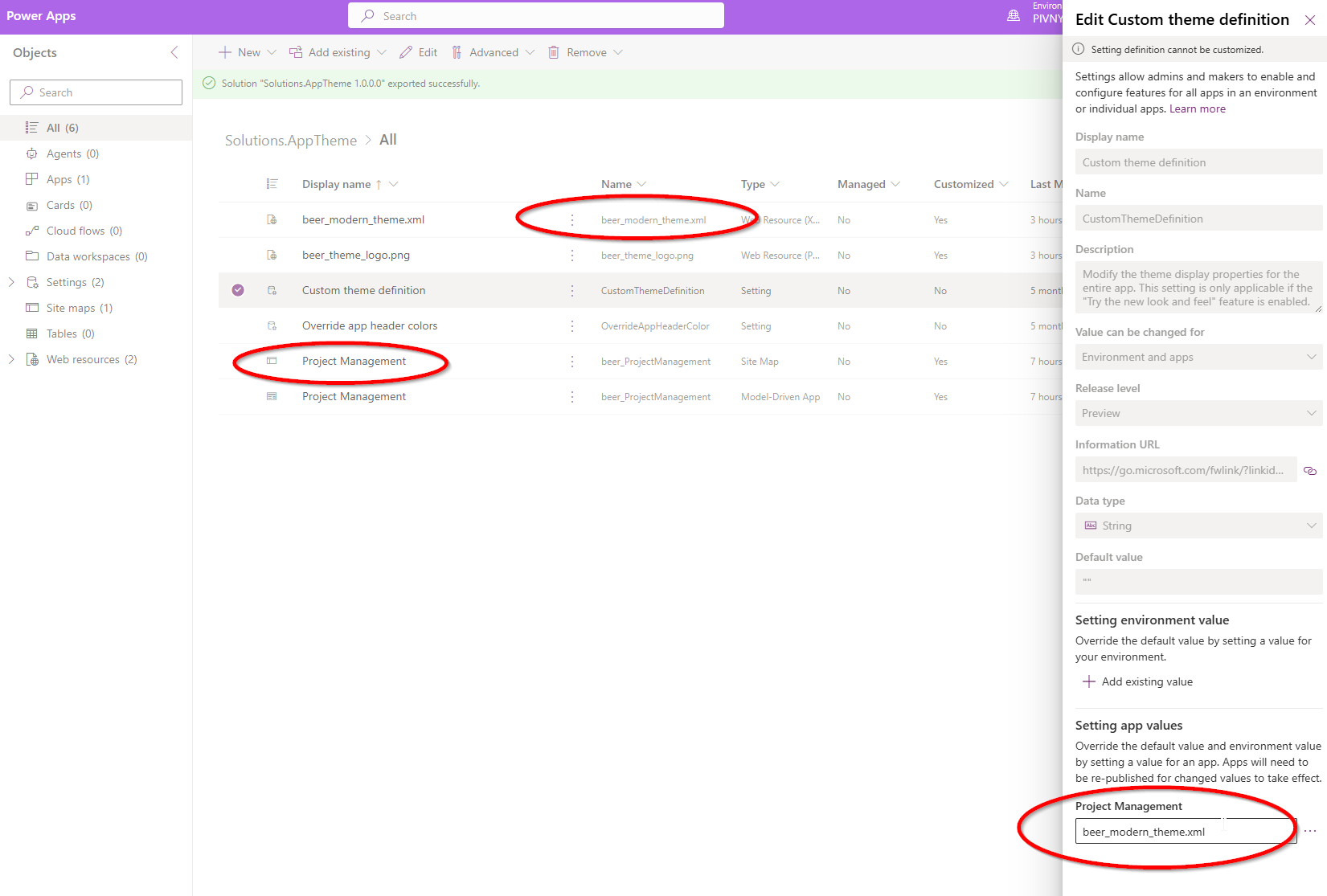
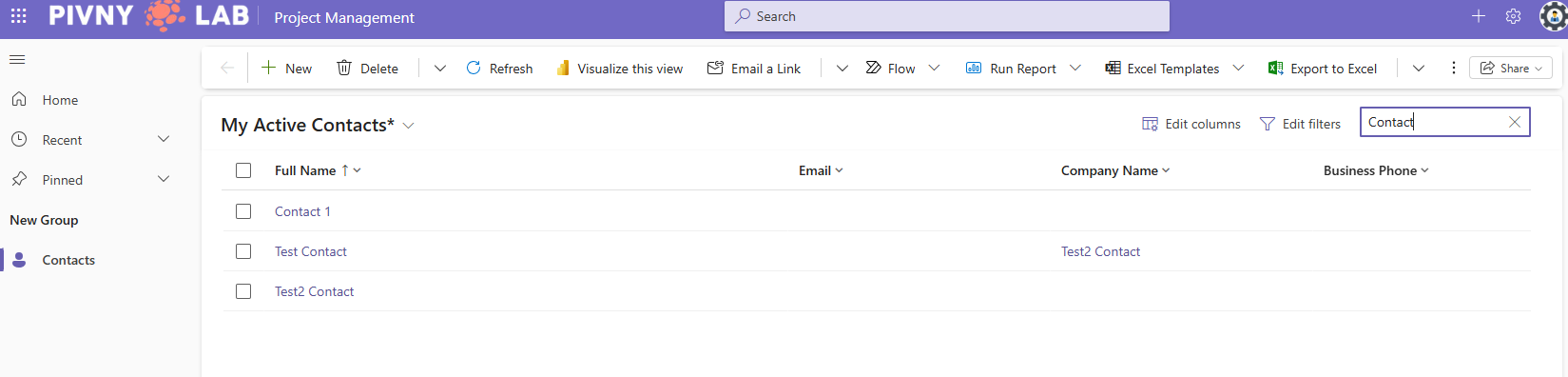
Publishing all the changes should propagate the theme to your app, so other apps are unaffected, and you can happily export your solution and deploy it downstream if you wish.
Unpacked solution method
I prefer to work directly with the unpacked components in my IDE. In this particular case, it is much simpler than going through the solution explorer, in my opinion. You simply add the app setting customization in the AppModule.xml (or its .yaml equivalent if you are working with the native git integration).
<?xml version="1.0" encoding="utf-8"?>
<AppModule>
  <!--unrelated app module metadata
	<UniqueName>beer_ProjectManagement</UniqueName>
	<statecode>0</statecode>
  	<statuscode>1</statuscode>
    ...
	-->
  <appsettings>
    <appsetting settingdefinitionid.uniquename="CustomThemeDefinition"> <!-- setting definition name -->
      <iscustomizable>1</iscustomizable>
      <value>beer_modern_theme.xml</value> <!-- XML web resource with your custom theme -->
    </appsetting>
  </appsettings>
</AppModule>
Both methods achieve the same result. The solution explorer method is more approachable if you prefer working in the browser, while the unpacked solution method is quicker if you already have your solution files checked out locally. Either way, once the solution is deployed, each app carries its own theme independently.